
IVR - (Integrated Voice Response) Screen is used to manage Interactive Menus and routing the call in accordance with the pressed DTMF (the tone generated when a phone key is pressed).
Note that IVRs can trigger other IVRs (sub-menu) in order to create more complex menu.
Check the IVR Flow Configure IVR - Flow – voipappz (zendesk.com) and make sure you have all the prerequisites ready.
-
Main Table :
In this table all of the Environments that are manageable by the current admin user will be listed.
You can display the Date when the Environment were created, if it’s enabled or not and its name.
The last column contains actions for managing the Environment.
List IVRs:
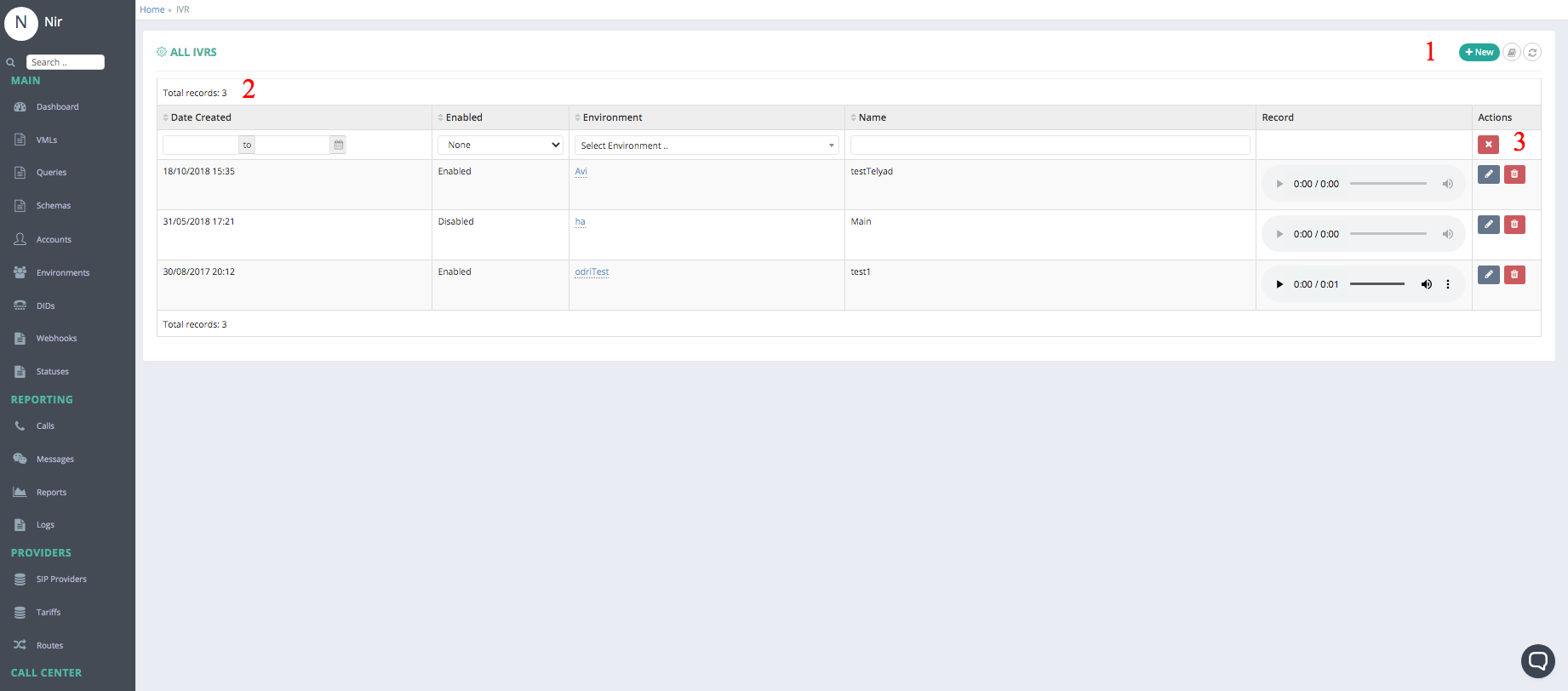
In this table all of the IVRs that are manageable by the current Account user will be listed
1. Table Columns:
- Date when the IVRs were created;
- if it’s enabled or not
- Environment Name;
- IVR Name;
- IVR configured announcement;
- The last column will be actions you can use to manage/edit the Environment,
2. On the top-right corner the “+New” icon is used to create new IVR. Also the "refresh" icon will reload the table.
3. Edit Options:
Clicking on the pencil icon ->>> will open the editing page for this IVR.
Clicking on the bin icon ->>> will delete the IVR.
-
New IVR:
Clicking on the “+New” button will refer you to the page where you can create a new IVR
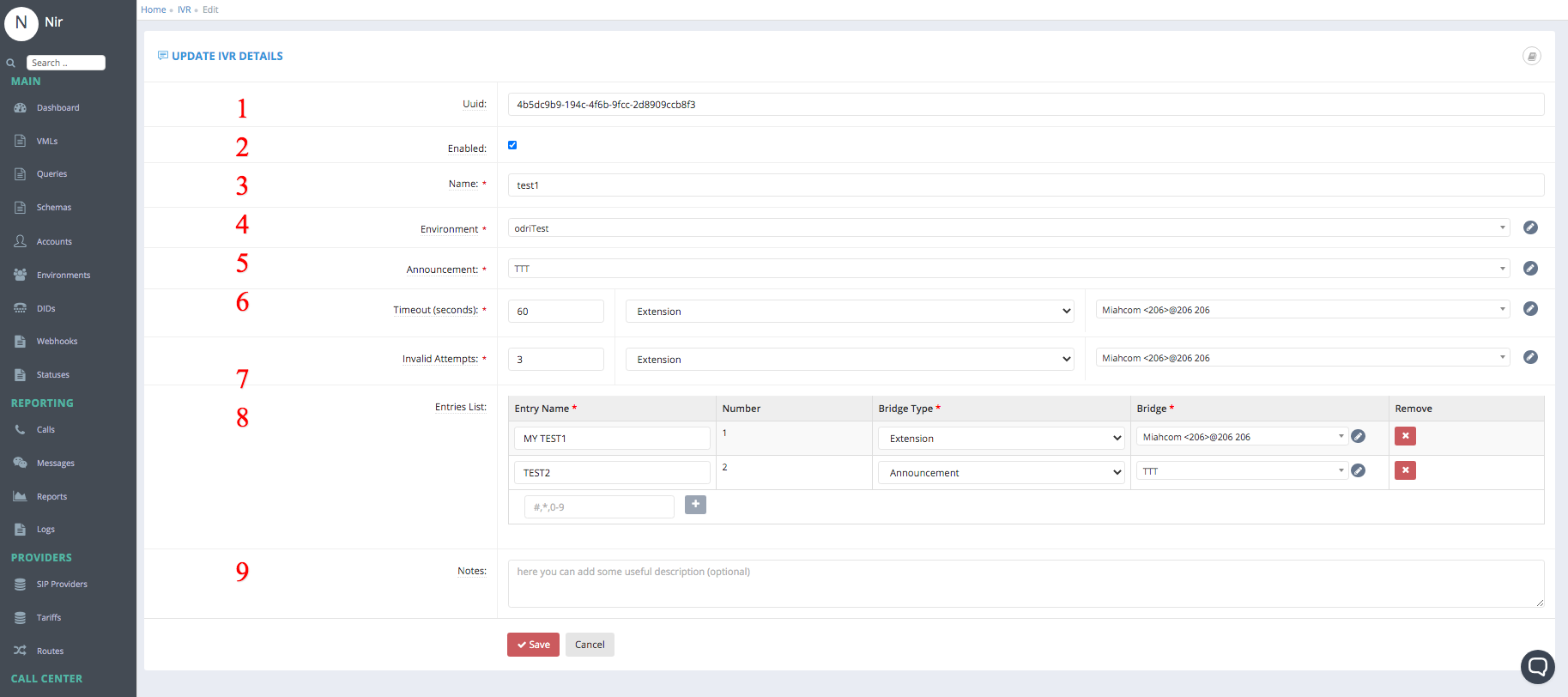
Fields:
These are the fields need to filled on order to Create or when editing a new IVR.
Note that most fields are pre-configured and should not be changed.
- UUID - A universally unique identifier (UUID) of the IVR , used for tracing
- Enabled - Enabled or Not
- Name – the name of the IVR (preferably a meaningful name)
- Environment – the name of the environment for the IVR where it is active. All environments available to the AdminUser will be listed.
- Announcement - Intro Announcement that will be played when customer enters the IVR
-
Timeout (seconds) - Time the system will wait for a response from the customer
-
Bridge that will be performed in case we are reach the timeout.
-
To Read more about bridges please refer to specific Bridge guide.
-
- Invalid Attempts - number of times the caller pressed an undefined IVR Entry
- Bridge that will be performed in case we are reaching the timeout.
- To Read more about bridges please refer to specific Bridge guide.
-
-
- Entries List: Add Entries (use the "+" icon)
- Entry Name – the name of the entry (preferably a meaningful name)
- Number - the number the caller shall press to select this entry (must be aligned with the announcement. Possible values 0..9, #, *).
- Bridge type - Select the "Bridge" activity to be executed. Bridge activity can be selected from: Announcement/Announcement Group/Campaign/Conference/Extension/Extension Group/Facsimile/Ivr/Number/Sip provider/Queue/Sbr/Time Condition/Vml/Voicemail
- Bridge - the name or number of the resource based on 3 selection above.
- Notes
After you are done creating the IVR click the "Save" button to save it.
Notes:
- Editing an IVR is similar to creating new IVR, the same fields are there and you can edit them as required. Click the "save" button for the changes to take effect.
- The "Notes box" at the bottom is open text box were you could write anything you think will help you regarding the current Environment.
- Changing the IVR Name is not recommended since it is used throughout the system.
Comments
0 comments
Please sign in to leave a comment.