
Extensions represents the SIP Extensions which connected to our Account.
They can be added manually (one by one) or imported from a CSV excel file.
-
Main Table :
In this table all of the Extensions that are manageable by the current Account user will be listed
1. Table Columns:
- Date when the Extension were created
- Date when the Extension was last edited
- if it’s enabled or not
- Extension's Environment
- Extension's Name
- Extension's username
- Extension's User - The user that associated to the Extension (note that every time we are creating an extension the system will automatically create a user with an access to the Portal)
2. List Actions
- On the top-right corner the “+New” icon is used to create new Environments.
- "Import" for Bulk Uploading Did numbers , you can use the following CSV file Template: Extension Upload Template
- The "Book" icon link to documentation
- The "Refresh" icon will reload the table
3.Edit Actions
- Clicking on the pencil (black) icon ->>> will open the editing page for this entry.
- Clicking on the duplicate (green) icon ->>> will open a new similar entry and a pop-up window to change fields.
- Clicking the bars (yellow) icon ->>> will open the log for the item.
- Clicking on the bin (red) icon ->>> will delete the entry.
The last icon will turn green when the SIP/WEBRTC phone is active and connected.
New / Edit Extension :
Clicking on the “+New” button will refer you to the page where you can create a new Extension. Depending on your voipappz version, you will se one of the below screens.
V1:
V2: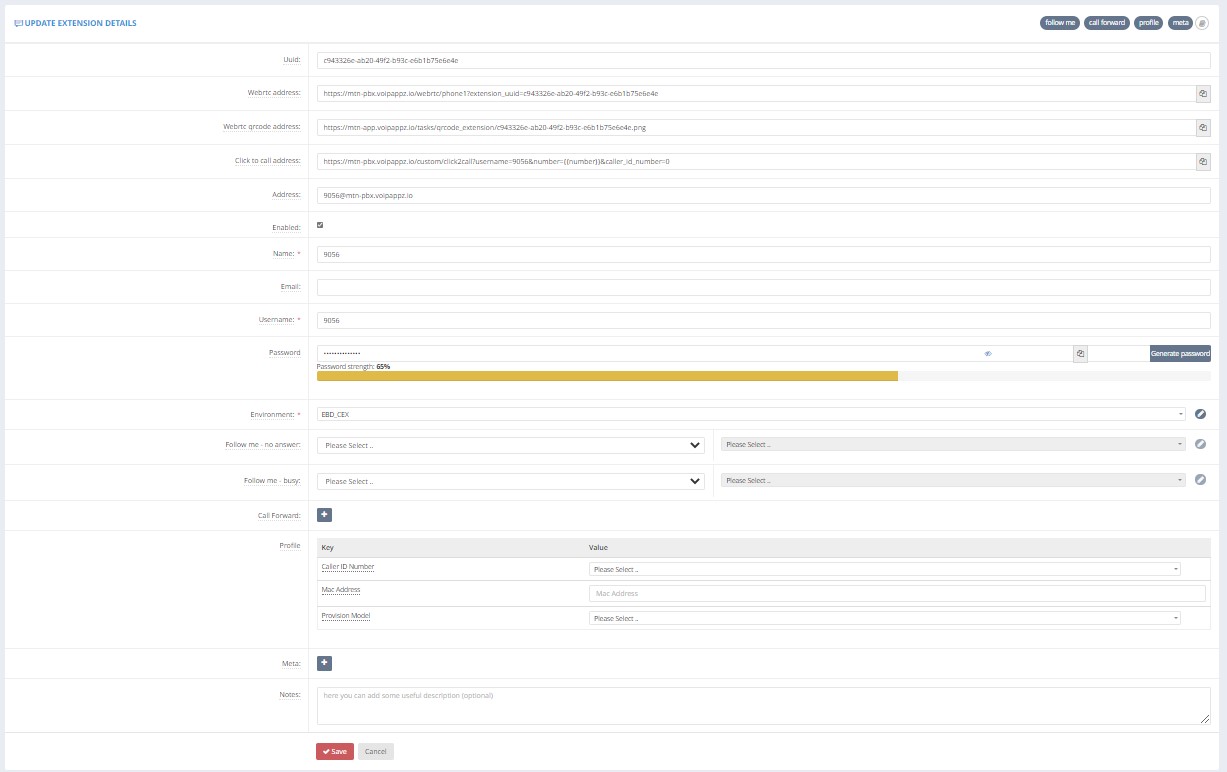
V3:
Fields:
These are the fields need to filled on order to Create DID
Note that most fields are pre-configured and should not be changed.
- A universally unique identifier (UUID) of the Extension
- Webrtc Address - Unique WebRTC Address of the Extension
- Cloud Softphone (iOS and Android) QR-code address - Unique QR-Code for Fast Access to the and quick configuration of your device
* (V2 only) Click to Call (C2C) address - used for embedded C2C implementation. - Portal IP Address- SIP username and Register domain
- Enabled - Enabled if checked
- Name – the name of the Extension
* (V2,3 only) Email - user's email. User will receive an email with credentials once the extension is created - Username - SIP user name (Extension Number)
- Password - SIP Password (registration password for WEBRTC, VOIP, Physical and Softphone)
- Environment - Extension's Environment. (V2,3 only - you only need to select an environment. All fields will be automatically created with the next available extension number including a user. you may edit the fields filled automatically later)
- Follow me - no answer - Bridge to Resource after Call Timeout
- Follow me - busy - ridge to Resource after Dial Busy
- Call Forward - Immediate Forward the Call
- Profile - General Settings of the Extension
- Caller Id Number - Choose Caller ID Number for the Extension
- * (V2,3 only) MAC Address - if you have a physical IP connected phone, enter its MAC address here.
- * (V2,3 only) Provision Model - The model of the above phone
* (V2,3 only) a provision file for the extension will be automatically created. If your organization has set up a provisioning server, the file will be placed on it and your phone automatically provisioned
- Meta:
- Notes:
Note that in V3 selecting the environment will automatically fill the fields with the next available extension. You may still edit manually those fields.
Comments
0 comments
Please sign in to leave a comment.