
Logs allow us to troubleshoot and trace events on the platform we they occur.
for example:
- Trace of Call made in the system
- View issues with Extension Which failed to Register
- Webhooks that have been triggered
- Campaign has been dialed
We Can Access The Data via the "Logs"
-
Main Table (List Logs)
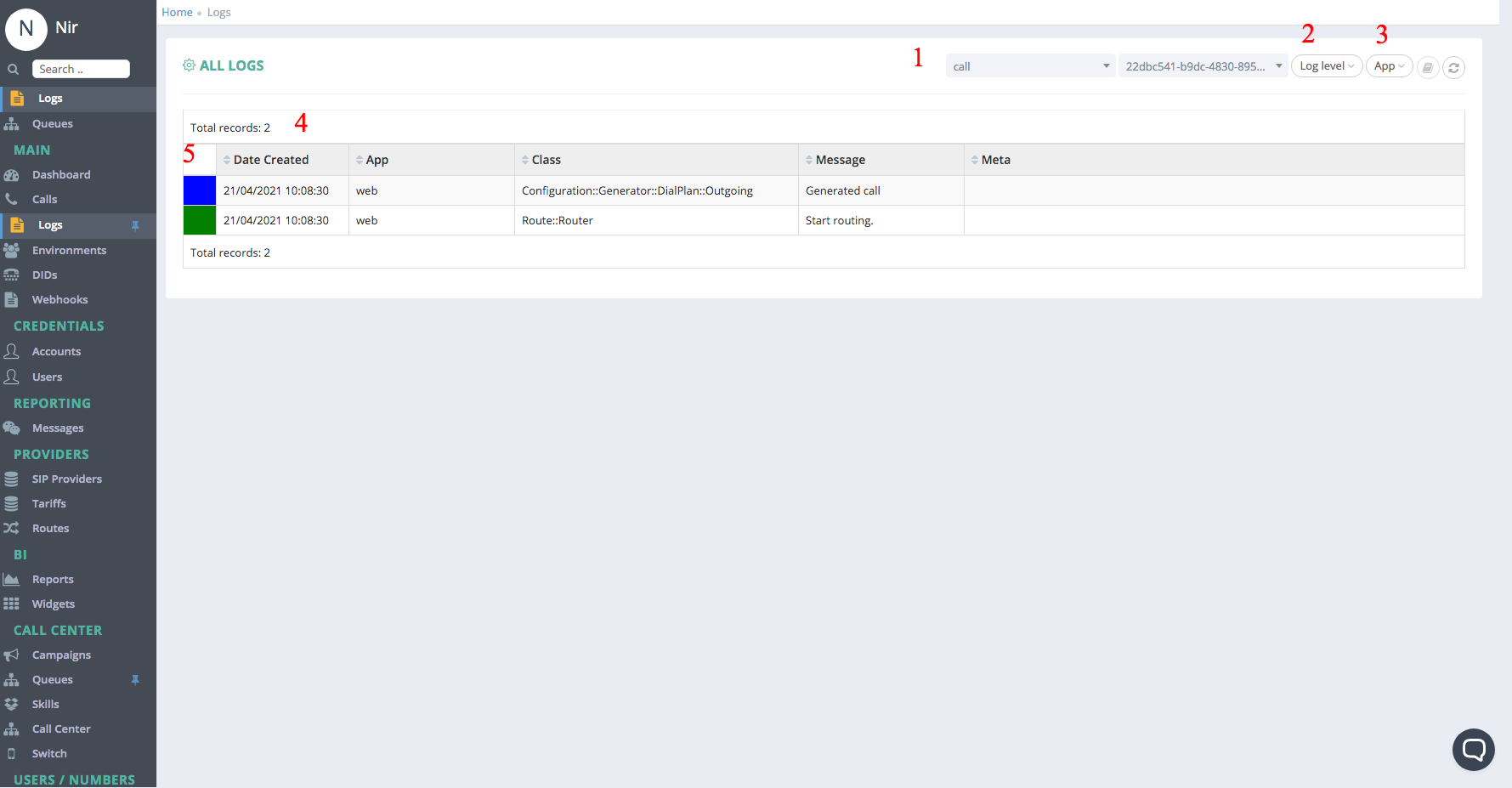
In this table we can list all the available DIDs that are assigned the current Customer.
1. Filter, we can Filter by the following log types
- Call - Filter By Call UUID
- Campaign - Filter By Campaign
- Workflow - Filter by Workflow
- Extension - Filter by Extension
- Number - Filter by a Number Dialed
- Campaign Number - Filter by a Campaign Number
2. Log Level - see 5 below
3. Application Name - Allow us to filter the logs by the Component
4.We Can see the following Columns:
- Time - When the Log Entry has been created
- App - Which Application Triggered the Log
- Class - The Facility Generated the Log (Usually the Class Name or the module)
- Message - The message belong to the Log Entry
5. Log Level- The Colors represent the Log levels
*** note you can access the logs via the Calls Screen

Comments
0 comments
Please sign in to leave a comment.