
Reports are pre-configured in the Voipappz system and can be run by any user with the required permissions. The reporting is done per environment since an environment represents a customer or a specific department.
There are 2 phases to reporting:
- Phase 1: Report definition -
- Since reports collect information from the system's database (db), you must firstly define the report. This is done jointly with voipappz team who will review your requirements and create a database query that collects the required information from the db and register it in the system.
- When the query is done and checked, it is embedded in a Report and can be executed, downloaded or emailed from the system. See below.
- Phase 2: Running the Report -
- Login to your Voipappz portal using your extension credentials.
- Select Reports and select the report you would like to run.
- press the "Eye" icon to run the report. Press the "Properties" icon to select other parameters such as report period, call duration, etc. and select "Filter" to rerun the report.
- Once you see the required information on-screen, press the "Mail" or "Download" Icons.
- Reports main Table (Admin-Console)
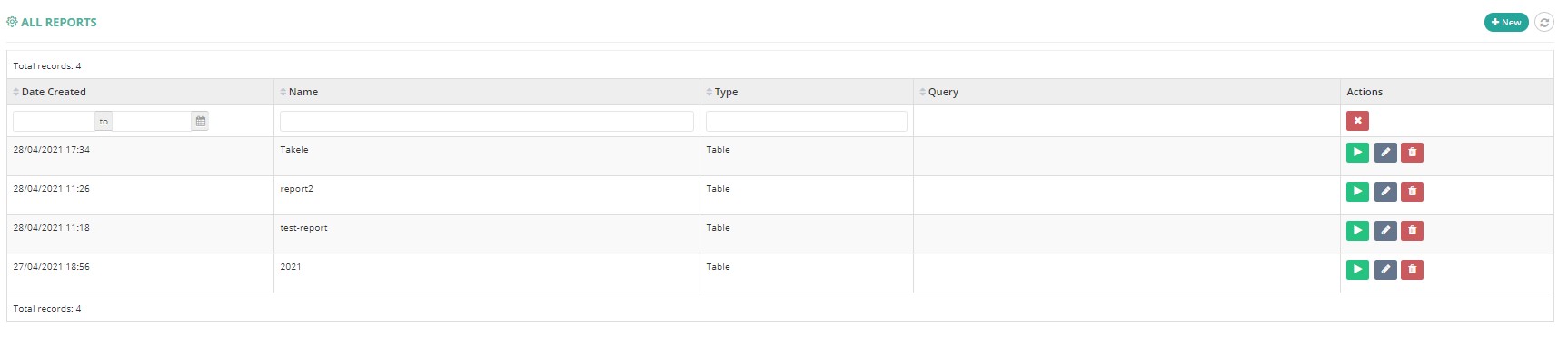
Listing of all existing reports fo the Admin-user logged in.
Table columns:
- Create date
- Name - preferably a meaningful name
- Type - Table/Counter
Icons:
+New ->>> Press to create a new report.
"Run" ->>> To run the report.
"Pencil" ->>> To edit the report.
"Delete" ->>> To remove the report.
- Edit/New Report (Admin-Console)
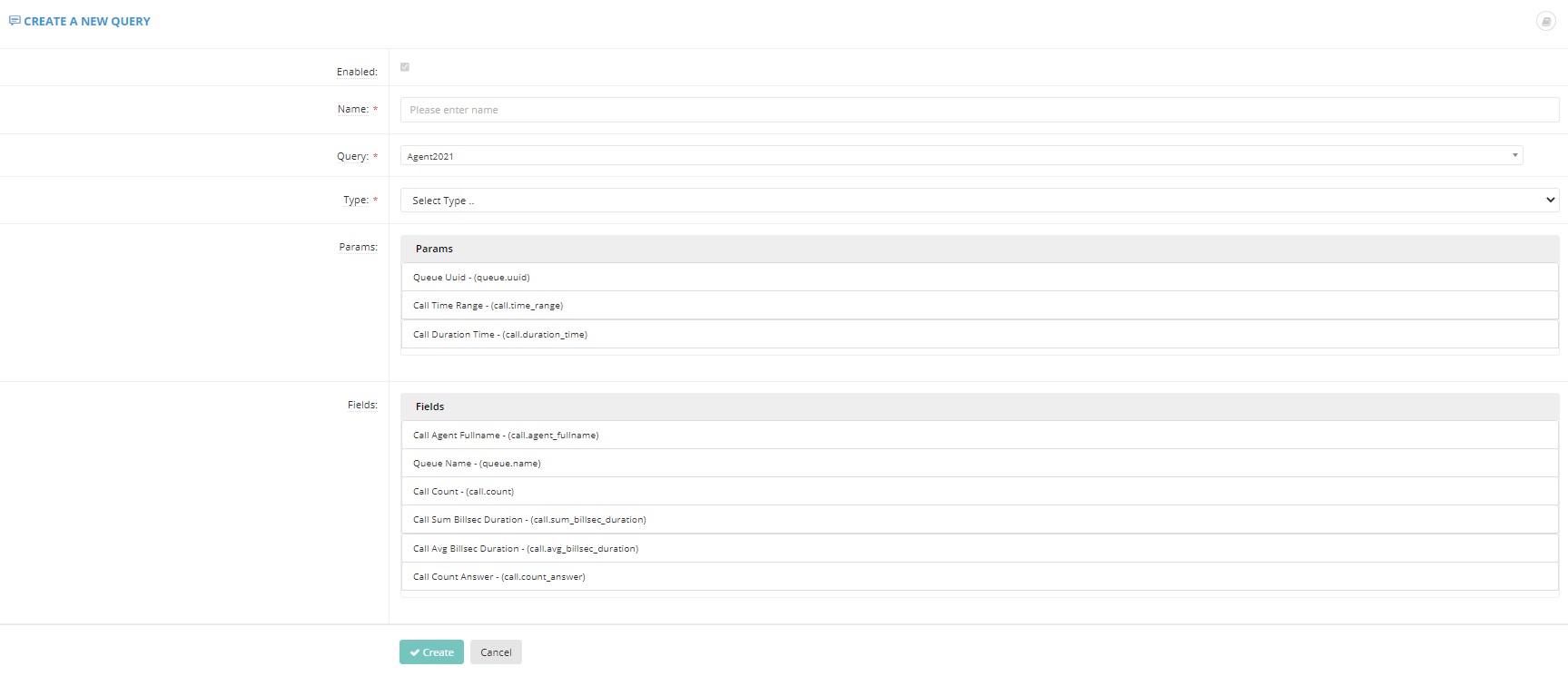
Fields:
- Enabled - Yes if checked
- Name - preferably a meaningful name
- Query - Select the pre-defined db query.
- Type - Table/Line chart
- Parameter - Click to select the query parameters
- Fields - Click to select the report fields
Press save/Create to finish.
- Run a Report:
To run a report login to the portal using a user that belongs to the environment you wish to run in.
Select "Reports" to show a list of the Reports available in the environment.

Select the Report by pressing the "eye" icon.
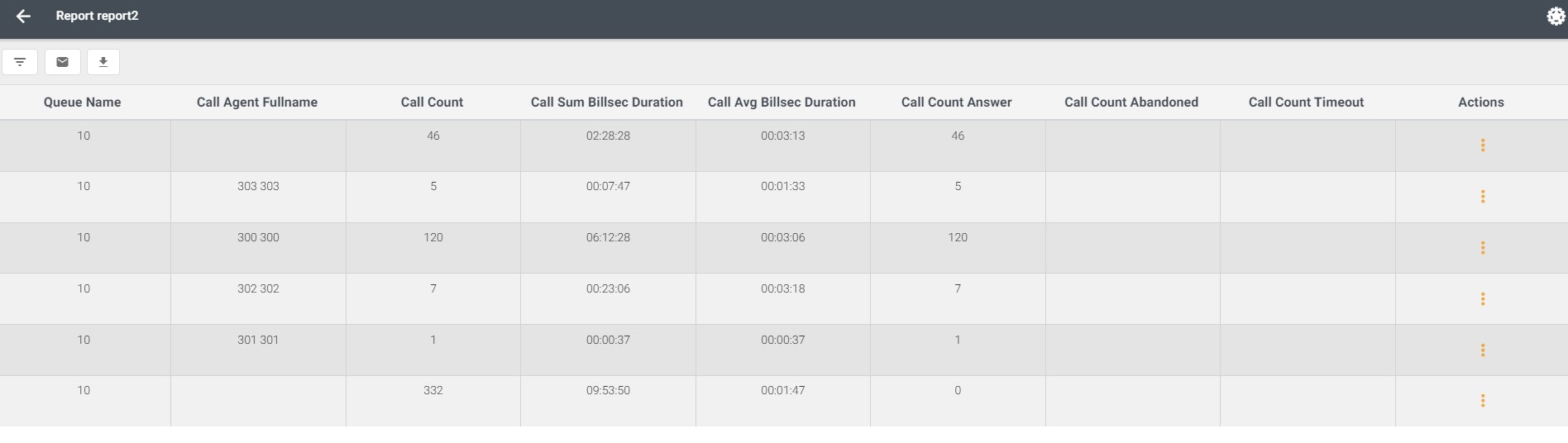
Select the "Edit" icon (first icon on the top left) to create a data filter for your report.

Note that the parameters and conditions are built-in to the query. However, complex filters can be created by pressing "+" or "-" and editing the fields.
Comments
0 comments
Please sign in to leave a comment.