
Templates are email templates used by the voipappz system to notify a used about voicemails or facemilias messages received for the.
Note that the service has to be setup. Read Voicemails - Screen and Facemile -Screen for details.
-
Main Table :

In this table all of the Templates accounts that are assigned to the current Admin-user will be listed,
1. Table Columns:
- Date when the Template was created
- Template Enabled/Disabled
- Type of Template - Select Type .. voicemail/facsimile/sms_callback
- Name of the Template (preferably use the extension number or username and a meaningful description)
- The last column will be actions you can use to manage/edit the templates
2. On the top-right corner the “+New” icon is used to create new templates. Also the "refresh" icon will reload the table.
3. Actions -
Clicking on the pencil icon ->>> will open the editing page for the template.
Clicking on the bin icon ->>> will delete the template.
-
New / Edit Template:
Clicking on the “+New” button will refer you to the page where you can create a new Environment
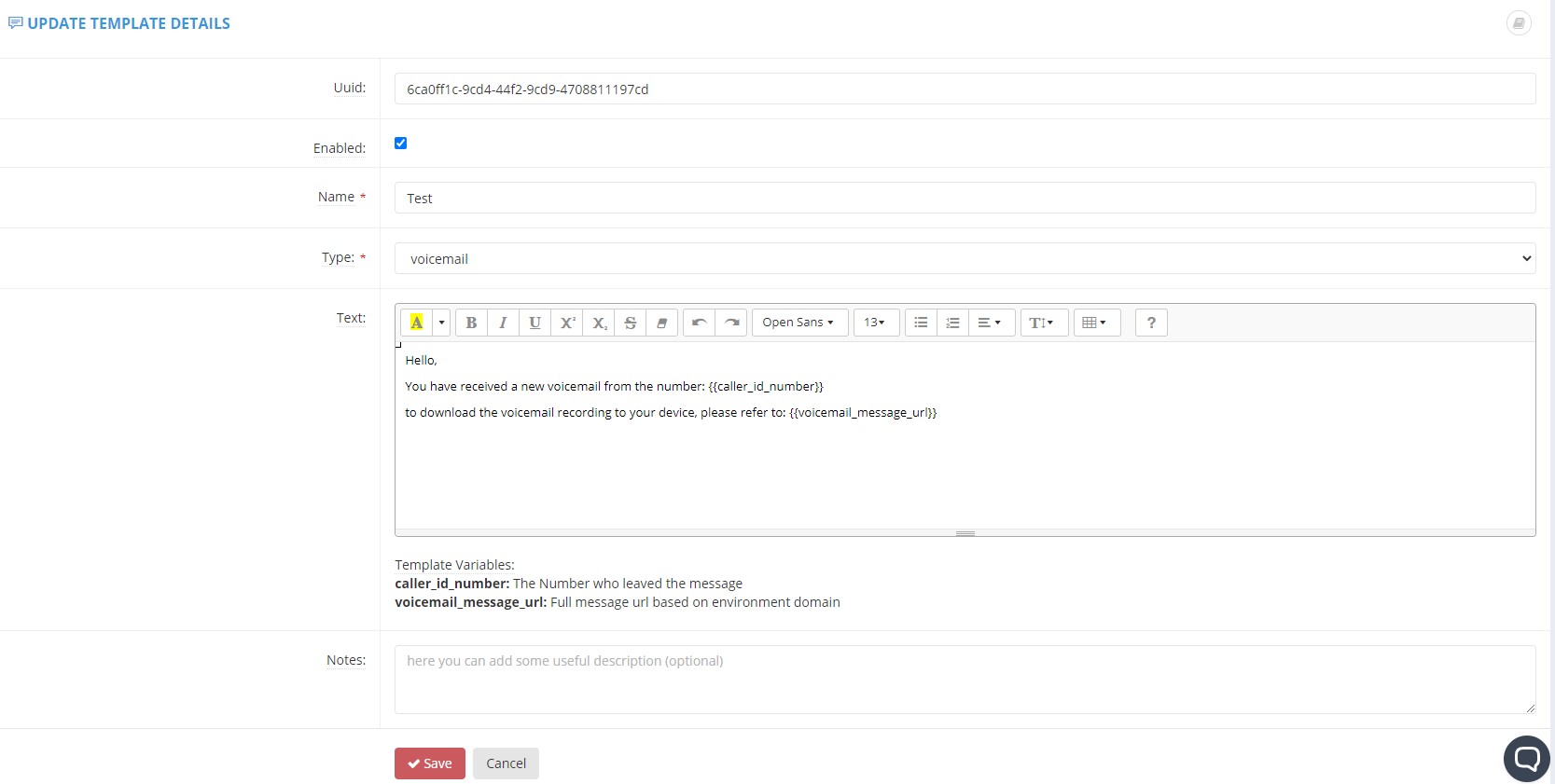
Fields:
- UUID (Edit screen only, read only) - A universally unique identifier (UUID) of the Extension
- Enabled - yes if checkbox is ticked
- Name – the name of the template.
- Type of Template - Select Type .. voicemail/facsimile/sms_callback
- Text - Use the editor to create a template email. Use cut/copy/paste if your organization has those templates. Note the use of Template Variables:
-
caller_id_number: The Number who leaved the message. Usage example:You have received a new facsimile from the number: %{caller_id_number}
-
voicemail_message_url: Full message url based on environment domain. Usage example:To download the facsimile to your device, please refer to: %{voicemail_message_url}
-
- Notes:
After you are done creating the template click the "Save" button to save it.
Comments
0 comments
Please sign in to leave a comment.