
Allow us to Manage DID (Direct Inward Dialing) Number or a Virtual Number
Calls made to these numbers are routed to the selected Bridge (or another service as selected). This can be an extension, a group of extensions or Queue / Voicemail/ IVR etc.
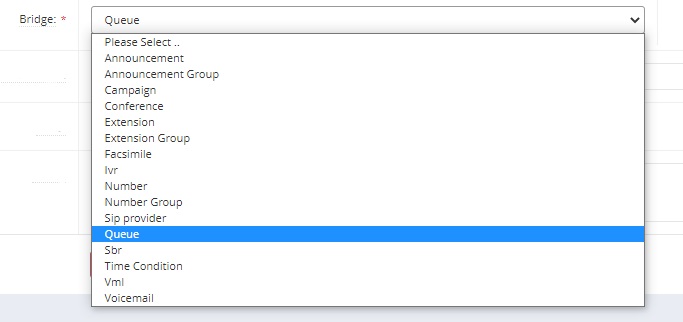
You can see the Available Bridge Types redirections below and note time-of-day and other options may be used.
-
Main Table (List DIDs)

In this table we can list all the available DIDs that are assigned the current Customer.
1. Table Columns:
- Date Created - Time and Date when the DID were created
- DID Status - Enabled/Disabled
- Environment - DID's Environment (for more info please refer to: https://voipappz.zendesk.com/hc/en-us/articles/360020404380-Environment-Screen
- DID Name - Name of the the DID
- Did Bridge - Bridge are fundamental connection entities in the voipappz system, they allow to connect the Call to one of the Following Resources (full list below)
- Voicemail - Create Voicemail for each user with the option of sending voicemail email
- Facsimiles - Receive Incoming Faxes (in most cases we are recommending using A.T.A Adapter)
- Extension - Create Extensions with Custom Caller ID (Based on Regulation), Follow me Unconditional / Busy / No-Answer
- Extension Group - Ring Group of Extension based on ring-all and hunt methodologies
- IVR - Create IVR Trees (Up to 10 Branches)
- VoiceMail / Voicemail 2 Email with Portal Access
- DID Number - The Actual Number we will bridge
- DID Actions - Allow us to Modify or Delete DID numbers
2. On the top-right corner the “+New” icon is used to create new Environments. and Import for Bulk Uploading DID numbers , you can use the following CSV file Template (DID Upload Template). Also, the "refresh" icon will reload the table.
3. Actions -
Clicking on the pencil icon ->>> will open the editing page for this DID.
Clicking on the bin icon ->>> will delete the DID.
-
New DID :
Clicking on the “+New” button will refer you to the page where you can create a new Environment
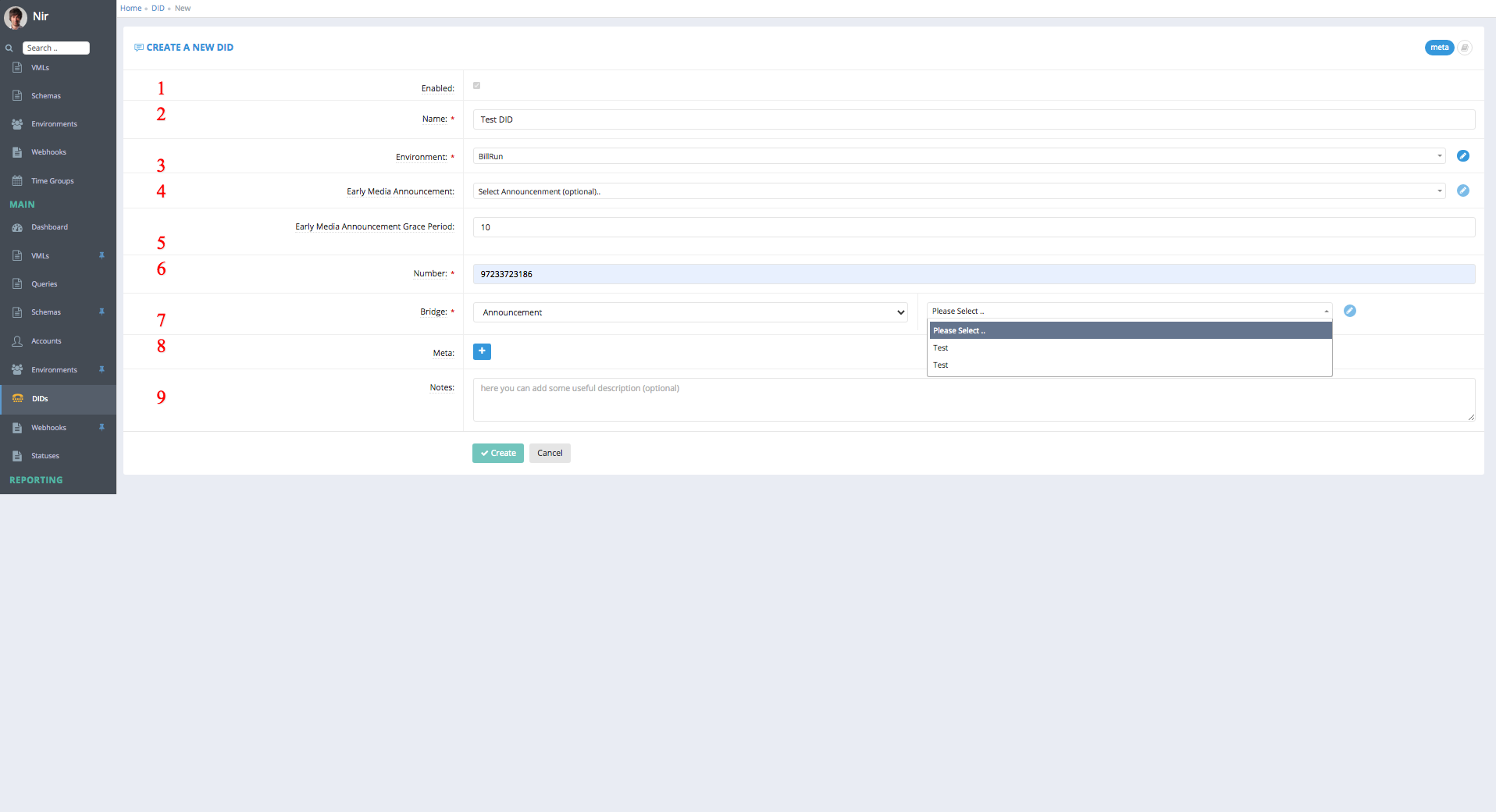
Relevant Fields:
These are the fields need to filled in order to Create a DID
Note that most fields are pre-configured and should not be changed.
- Enabled - Either the Did is enabled/disabled
- Name – the name of the DID (preferably use a meaningful name)
- Environment - The Environment which DID will be associated with. select an environment from the list. All environments available to the Admin-user will be listed.
- Early Media Announcement - Will allow us to play "Early Media" Announcement before we answer and bridge the call (Used for Pre-Billing)
- Early Media Announcement Grace Period - Time to wait after the Announcement is played in seconds.
- Number - The Number we will use for the DID. This is the number we dial to enter the voipappz system.
- Bridge - the redirect action defined for the incoming call
-
Please Select the default activity in this case .. Announcement/Announcement Group/Campaign/Conference/Extension/Extension Group/Facsimile/Ivr/Number/Sip provider/Queue/Sbr/Time Condition/Vml/Voicemail
-
Please Select .. additional information that may be required depending on the above activity selected
-
-
Meta: Advanced users only - press the "+" icon to add meta keys and associated value
-
Notes:After you are done creating the DID click the "Save" button to save it.Note: In some Voipappz versions DID was enhanced with "Time Groups" selection in the New DID screen. Selecting it will list all available Time Groups for the current environment. Simply select the required Time Groups (multiple selection is possible) and the incoming calls on the DID will be handled accordingly. When activated, Bridge will divert the calls that meet the time Groups conditions and when the conditions are not met, the calls will be diverted to the Bridge on TIme Group Not Match.
Comments
0 comments
Please sign in to leave a comment.