
voipappz - Softphone Installation
Table of contents
Install and Configure Softphone
- Download and install the package.
- Add a user to the Call Center. More information in Manage users in call center section.
- Update a Lightning Experience app.
- You must be in Lightning Experience to update Lightning apps.
- From Setup, use the App Manager to find SoftphoneApp or use other app that uses Console Navigation (e.g. Sales Console).
- Add the Open CTI Softphone to your utility bar.
- Add the navigation items you want.
- Assign the app to the user profiles you want to access the app.
- When you launch your updated Lightning app softphone button should appear on bottom bar:
- Assign proper profile to access Softphone Credentials page. More information in Give access to credentials page section.
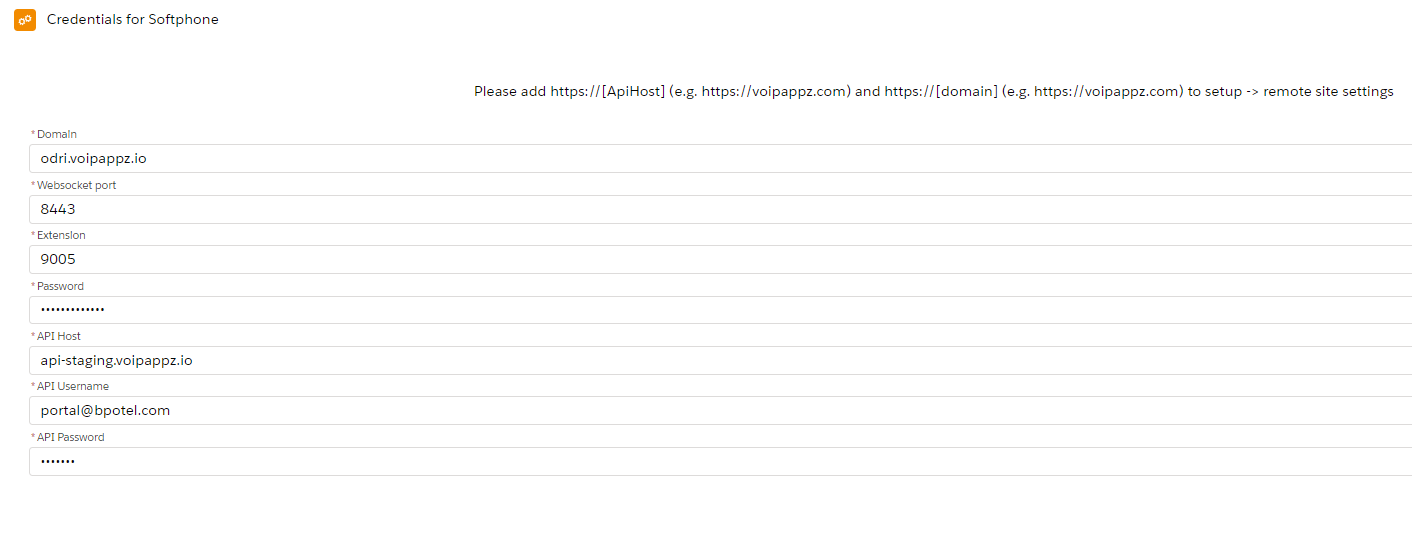
- From App Launcher choose Softphone App and next from picklist Softphone Credentials page
- Fill all credentials. More information about fields in Fields description section.
- Softphone is ready for use.
Call Center
Setup -> Call Center -> Call Centers
CALL CENTER FIELDS DESCRIPTION
- Internal Name - Represents the unique identifier for the call center in the database.
- Display Name - Represents the name of the call center as displayed in Salesforce.
- CTI Adapter URL - Represents the location of where the CTI adapter or softphone is hosted.
- CTI Adapter URL2 - Represents the location that hosts the secondary softphone. The standby softphone is used after the timeout period for the primary softphone has elapsed.
- Timeout - Represents the time in milliseconds after which the standby URL is used to host the softphone.
- Use CTI API - Represents that the call center is using Open CTI (true) or not (false).
- Softphone Height - Represents the height of the softphone in pixels as displayed in Salesforce.
- Softphone Width - Represents the width of the softphone in pixels as displayed in Salesforce.
- Salesforce Compatibility Mode - Determines where the softphone is visible. If no value is specified, the default is Classic.
MANAGE USERS IN CALL CENTER
- In call center settings click button Manage Call Center Users.
- For add user click Add more users button.
- Filter users or click Find button.
- Select proper user and click Add to call center button.
- For remove user from call center select proper users and click Remove users button.
Credentials page
CREDENTIALS FIELDS DESCRIPTION
- Domain - Domain for websocket server (wss://[domain]:8443)
- Extension - extension for uri (uri: [extension]@[domain])
- Password - Password for websocket server
- Api host - Api host for integretion with phone server (i.e. for get history calls)
- Api token - authorization api tokent for api host.
GIVE ACCESS TO CREDENTIALS PAGE
- Go to Setup -> Profiles and find user profile who want give access and click Edit in proper profile
- Find section Tab Settings and Softphone Credentials
- From picklist choose Default on.
- Click Save button.
Integration with Salesforce via REST API
Authorization
- If you don't know your security token then:
- Go to View profile -> Settings -> My personal information -> Reset My Security Token
- Click Reset Security Token
- On email you get new security token
- Go to Setup -> Apps -> App Manager -> Voipappz -> View
- Copy ConsumerKey and ConsumerSecret parameters necessary to REST API authorization.
- Create a POST request to authorization: https://login.salesforce.com/services/oauth2/token?grant_type=password&client_id=YourConsumerKey&client_secret=YourConsumerSecret&username=SalesforceUserName&password=SalesforcePasswordAndToken where:
- YourConsumerKey: Consumer Key obtained from Connected App.
- YourConsumerSecret: Consumer Secret obtained from Connected App.
- SalesforceUserName: Salesforce User ID.
- SalesforcePasswordAndToken: Provide the login credentials of Salesforce
- (if salesforcePassword = abcdef and salesforceToken = 1w2e3e4r4t then SalesforcePasswordAndToken = abcdef1w2e3e4r4t)
Get Contacts
- Before get contacts records is required authorization to Salesforce. Go to Authorization section.
- Create a GET request with endpoint: https://instanceurl/services/data/v46.0/query?q=SELECT Id,Name,Email,Phone FROM Contact where:
- in Header set authorization parameter as token_type and access_token from authorization response.
- instanceurl is instance_url parameter from authorization response
- it is possible add to query additional fields from Contact object
Get Leads
- Before get leads records is required authorization to Salesforce. Go to Authorization section.
- Create a GET request with endpoint: https://instanceurl/services/data/v46.0/query?q=SELECT Id,Name,Email,Phone FROM Lead where:
- in Header set authorization parameter as token_type and access_token from authorization response.
- instanceurl is instance_url parameter from authorization response
- it is possible add to query additional fields from Lead object
Comments
0 comments
Please sign in to leave a comment.