
Introduction
Voipappz system includes a conference-bridge calling facility for any user with an assigned extension with support for upto 100 participants. To conference 3 participants you do not need a conference call facility. You can simply add another participant from your phone during a call.
For additional participants, use the built-in conference facility.
voipappz conference bridge service conference allow you to create sophisticated conference solutions for you an your customers
With the conference service you can:
- Allow conference rooms for up-to hundred of users
- Authenticate The Users with Role Based Permissions (Take , listen etc)
- set schedule conference with custom invite mode (by SMS / Email / etc )
- Live Control on the Conference using DTMF Keys or using RealTime DashBoard
Note you must check if the system administrator has enabled conference calls on your extension.
Steps
To create a new conference call with 4 or more participants, log in to your assigned extension on the system portal.

Once logged-in, select the menu item "Conferences".
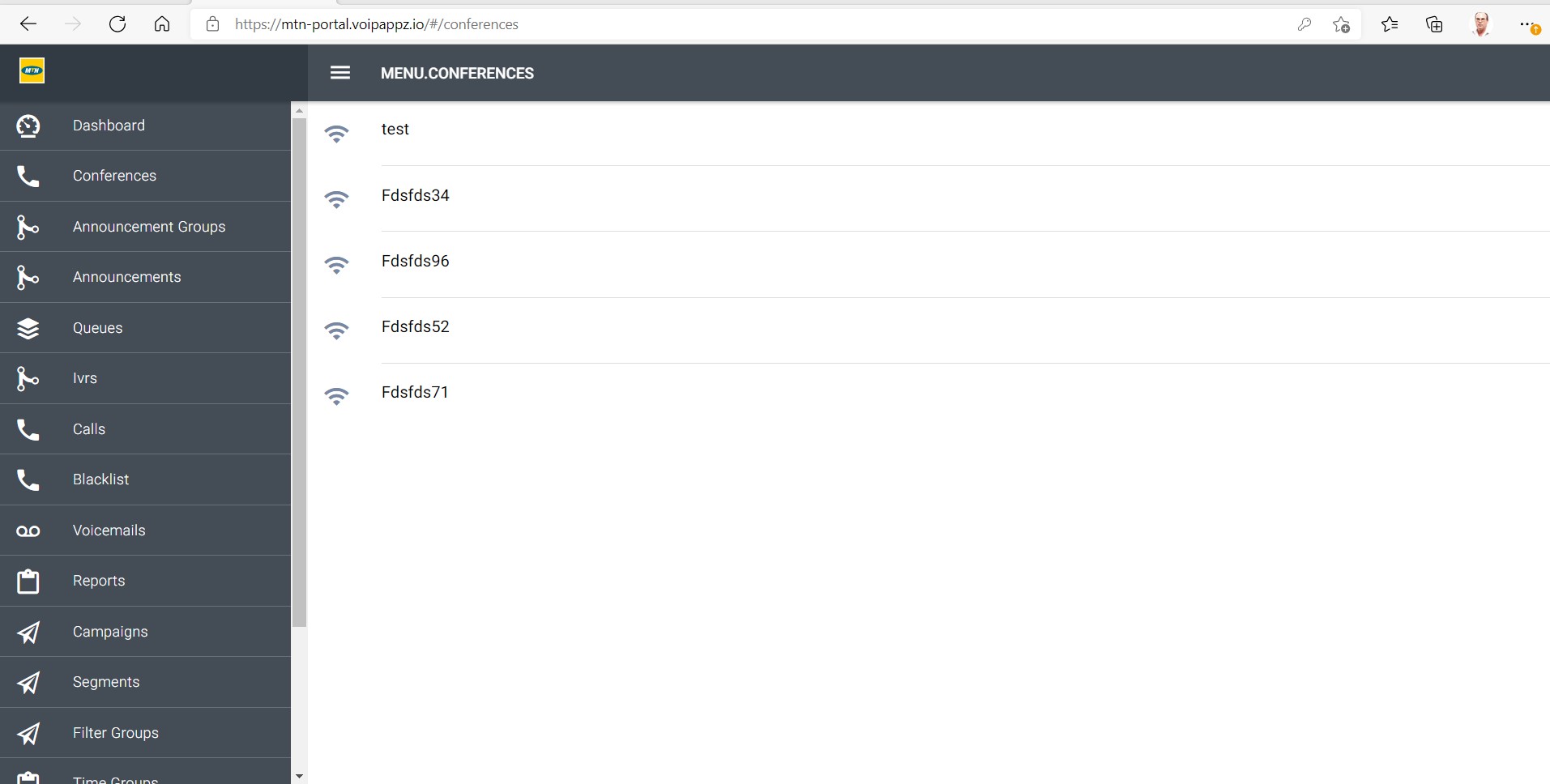
Select the "+" sign on the top right corner to create the new conference.
Fields you need to fill:
- Conference Name - Give it a meaningful name
- Conference Subject - Type the subject of the conference, an agenda and any instructions to the participants
- User pin code - A system created 4 digit pin code for participants to join the conference
- When - Select "now" to immediately start the conference or choose "later" and add a date and time for the conference in the next field
- Did - Select the incoming phone number the participants will use to dial in. It may be pre-selcted if only one exists
- Contacts - Select a pre-loaded contact list (see below) or
- Email - Type/paste emails of the conference participants separated by commas or space
- Notes - Enter any notes related to the conference. The notes are emailed withe the conference details to all participants
Note: all participants will receive a system generated email with the conference details and when to join.
Controls from your phone:
- Self Mute - #1
- Mute All (Except Operators) - #2
- Volume Up - #3
- Volume Down #4
Full List of Conference Keys:
- mute - Toggle audio from this member into the conference
- mute on / off Members- Disable / Enable audio from this member into the conference
- deaf mute - Block audio from conference to this member as well as mute, in one action
- energy up Increase minimum energy threshold by 1 unit above which sound will be admitted into conference (noise gate)
- energy equ Reset minimum energy threshold to default
- vol talk dn Decrease talk volume by 1 unit
- lock ( Moderator ) - lock -Conference Call from Members
Uploading a Conference contacts list
You can pre-load contacts' email lists for your conferences. to load a file follow the following steps:
- Select "Lead Files" from the portal menu
You can edit an existing file or press the "+" icon.
Pressing the "+" icon will open an upload file screen:
- Drag or type the name of the .csv contacts file. The file must be in the required format.If you are unsure about the file format, press the "Download File Template".
- Wait a few seconds for the upload to finish (depends on your connection speed)
The file is now available for selection from the Conference menu.
Comments
0 comments
Please sign in to leave a comment.