
Step One - Login to the Portal:

Enter your username / password
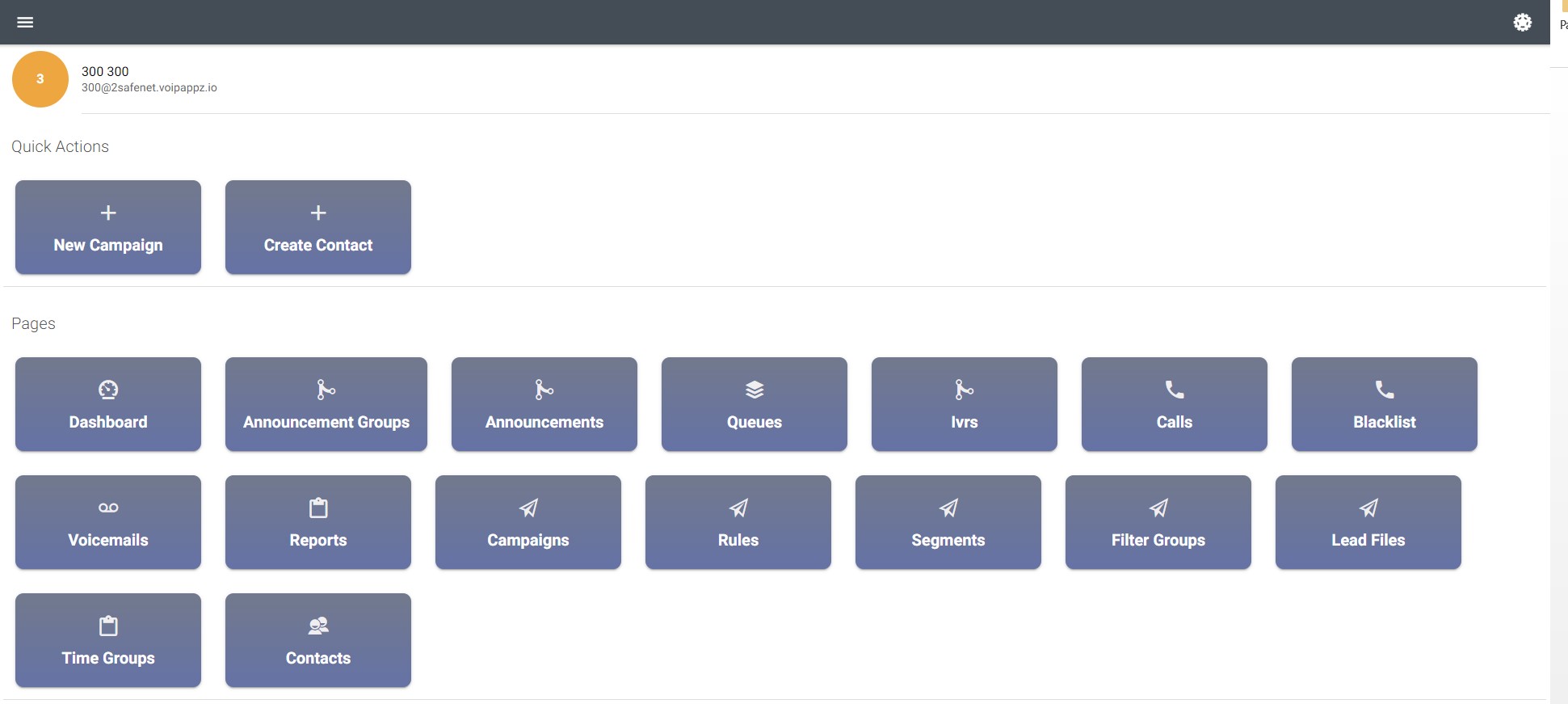
Screens:
Dashboard – Get real time data for the Campaign, such as active calls , Agent Talking
Blacklist - Blacklist Number which marked as DNC
Reports – built-in reports that can be fine-tuned to display any collected data
Calls – list of recorded calls. You can listen, download, sort and delete
Logs - For Advanced use, see how you can trace events on the campaign such as User Answer / No Answer ETC
Campaigns – list of campaigns. You can edit, create new and delete
Rules – list of dialer instructions. You can edit, create new and delete
Segments – list of Segmentation rules for the dialer. You can edit, create new and delete
Workflow – The Engine behind the Campian, allow you yo set Custom Rules For Dialing
Lead Files – Lists File of the Campian
Time Groups – lists of active (opening) hours. You can edit, create new and delete
Contacts – list of contacts. You can edit, create new and delete Record Per Contat
Step 1 - Upload Your Numbers:
Refe to Lead Files page:
Lists all Lead files in the system.
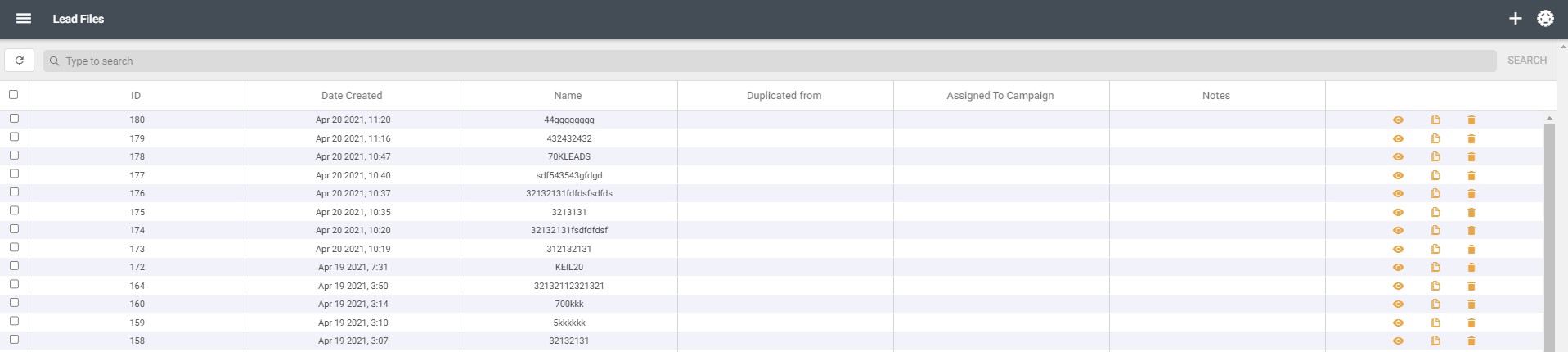
Use the icons on the right to view, edit, duplicate and delete a file.
Use the "+" icon to load a new file. The file must be a .csv file formatted in the following way:

Example of CSV file:
phone,lead_id
972545234585,192347094,1,24
039000000,192348991,1,24
Please note the system support the following Fields:
first_name last_name email address_1 address_2 state city zip_code country
Step 2 - Attach the Number Group Files to the List from the Campaign
Campaign Screen
You can define and use campaigns to systematically call numbers from a preloaded file. If the call is answered it will be transferred to an available agent to handle.
This screen lists the available campaigns.

To run a campaign, press the "►" icon. Press the "+" to create a new campaign.
to create a new campaign, you will need to set the following in the Campaign Edit Tab

Rules - Collection of conditions that determine how the dialer will work. i.e. "no answer", "busy", etc.
Filter Groups - are used to determine how the Segments influence the number selection.
Lead Files - hold the list of numbers and other details to use when running the campaign.
New Campaign
Fields:
- Name – the new campaign name. Please use a meaningful name.
- Strategy – possible are:
- Queue - Process the Incoming Call to a Call Queue . please refer to Queue Section to See al the Option
- Hangup - Used to Dial the Customer and Hangup, useful with combination with
- Skill Group - Process the Incoming Call to a Skill Based routing. for example you can Create Agents with the Skill "english" and the campaign will Dial only those Agents
- Originate Rate – This is the geofencing of the Campaign. the value is set per 1 available agents. for instance if we have 2 available agents. The value to 2-5 will allow to dial only to 4-10 concurrent calls . please note the Campaign is Adaptive meaning if we see the answer rate of agents dial increasing the campaign current originate rate will strive to the minimum , if we see the customer answer rate is decreasing we will strive to the maximum
- Caller ID Numbers – This is the List of the Caller ID we will use for the Campaign, you can use group of numbers that will be used randomly
- Schedule campaign - This will allow us to set Dial Timeing for the Campaign. for example we can create Schedule
- Profile - General Setting of the campaign
- Answer minimum seconds -
- Campaign concurrent - How many concurrent Calls to Dial for the Campaign.
- Contact timeout - How many Seconds to dial the Customer before we are time out
- User timeout - how many Seconds we will dial to the Agent before will Timeout
Press Save when done.
Step 3 - Verify the Workflow and Rules of the Campaign are suited for your needs:
Before running the campaign we need to take a step and check the Rules and Workflows of the campaign. thoose tools allow our campaign:
Workflow -this is a rule based engine that will be process the number of the campaign. for example we can set a rule that will fetch numbers only from some list files or we want the Campaign will dial only to some country
to behave by defined rules we will set and allow the campaign to Dial to the right segments and if for example :
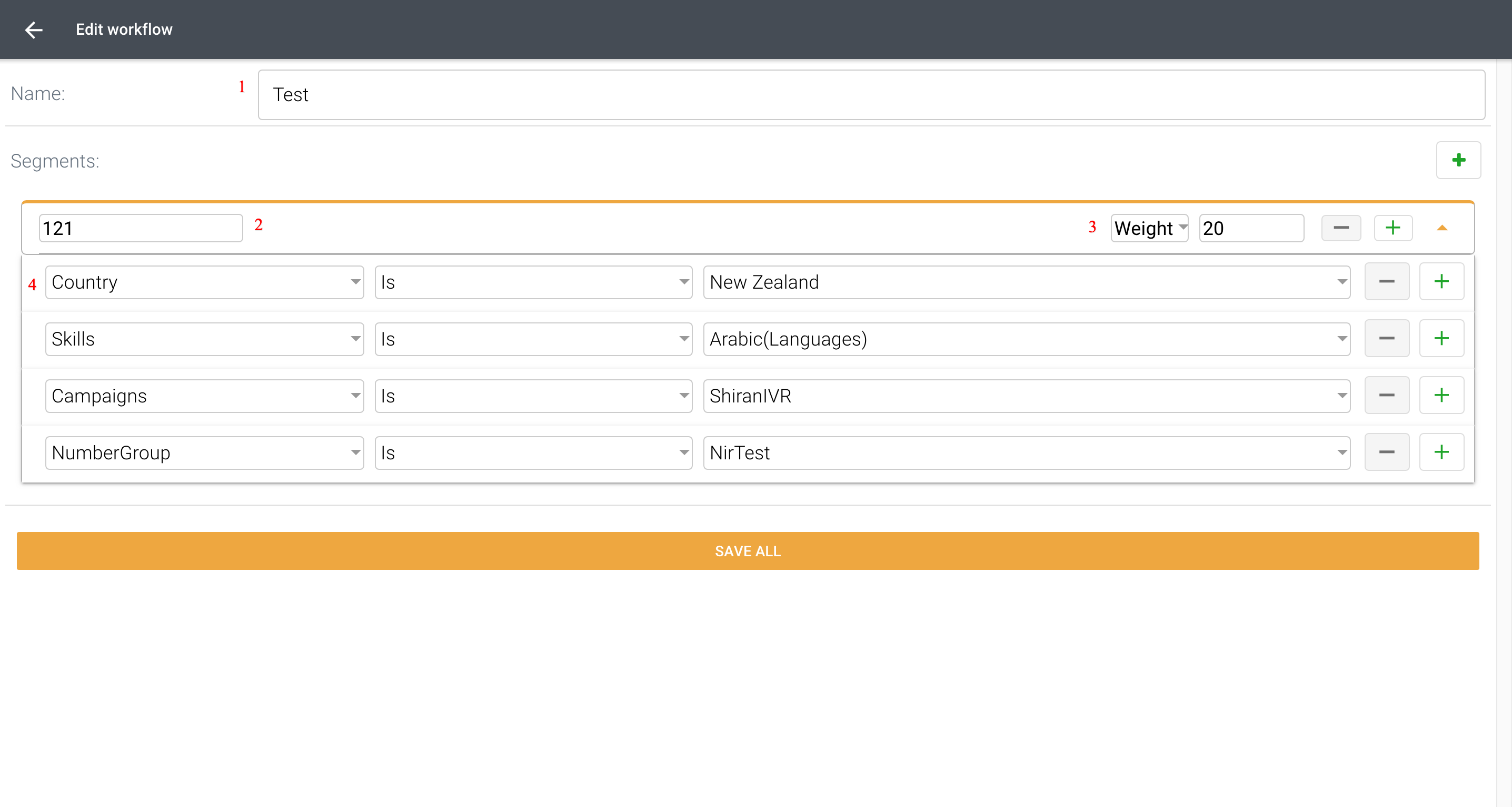
For example we can see:
- Name of the Workflow (note you can attach multiple workflow for a campaign)
- Name of the Workflow Segment (Segment is a group of rules we are attaching
- Weight - this is the Amount of Numbers the Workflow will fetch in all instance . please note the Campaign will load more numbers Numbers only when it will be finished
- Rules - Here we define the rules we will use for the
Rule -this is a rule based engine that will be proceeded after each call ends and will allow the Campaign

or example we can see:
- Name of the Rule (note you can attach multiple workflow for a campaign)
- Type - Type of the Rule (Defaults to Campaign)
- Conditions to Process of the Campaign . for example you can Set ALL or ANY Types meaning in All rules - we need that Every Rule will matched to trigger the Action , In Any rule we need that One of the rules will be triggered to run the Action
- Actions are the Action we will trigger in case the rules are matches:
- increase the weight of the Number in 100
- Resert the Number and Dial Again in 5 minutes
The Rules engine is a Powerfull engine that will allow us to create a recurring behavior and allow the campaign for example to dial again numbers in case of Busy/No Answer mode fo and and Stop Dialing in case we set the Status if a Customer is not Inserted.
Comments
0 comments
Please sign in to leave a comment.