
Zoiper, a SIP softphone allowing VoIP calls through your PBX or favorite SIP provider. Available for iPhone, Android, Windows Phone 8, Windows, Mac and more.
Download Links:
In this guide we will show how to configure it to work with the Voipappz (VA) platform.
Step 1: make sure you configured the extensions you need on the Admin Portal server. please Read First and Extensions - Screen guides.
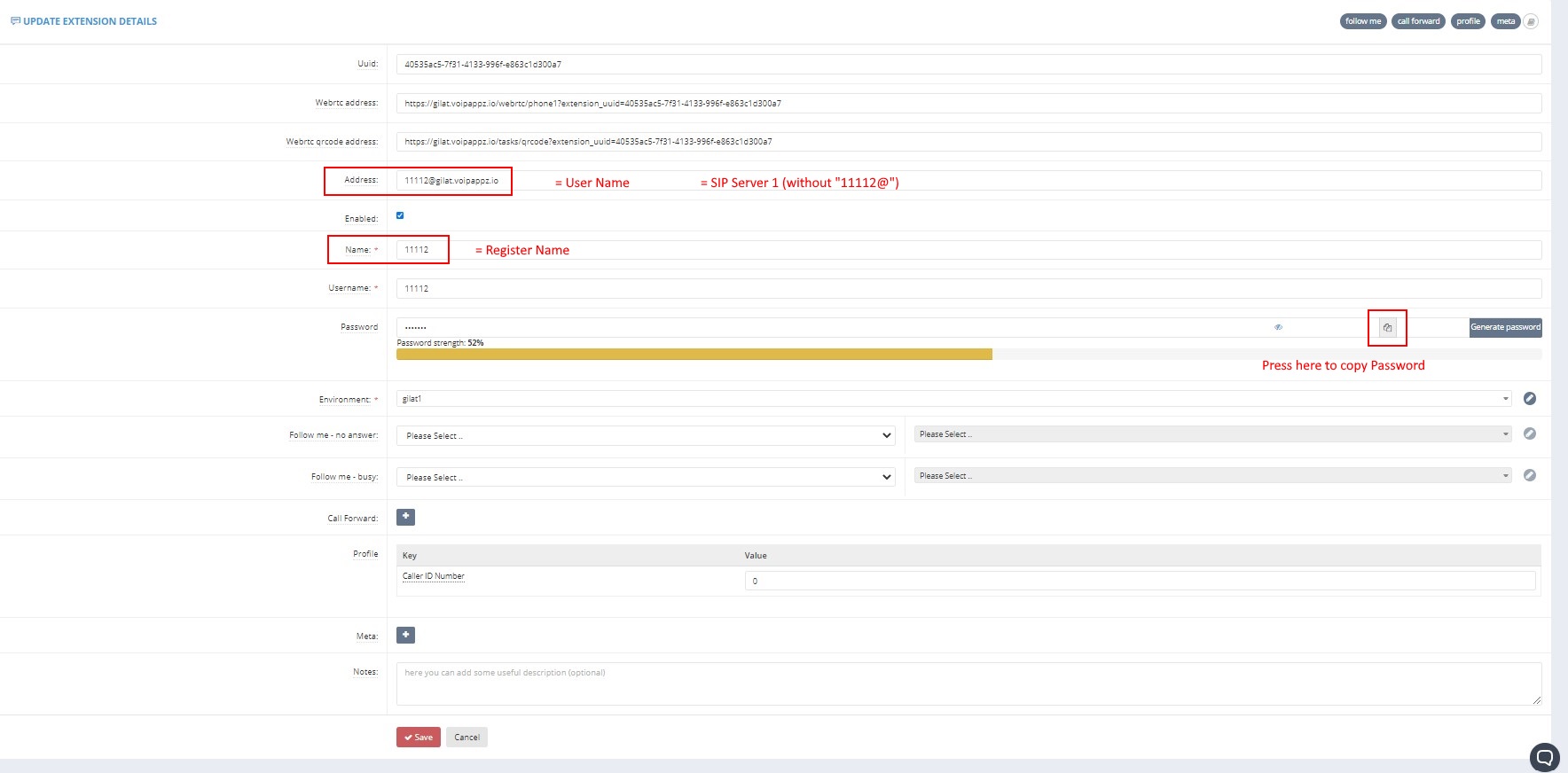
Step 2: Make a list of the extensions you need to setup. For each Setup you will need the following Details from the Admin Poretal
- Username - for example: 1112
- Password - *press the reveal password to see it *
- Domain - for example: gilat.voipappz.io
They are available in the Extensions - Screen of the VOIPAPPZ application. See marked below.
Step 3:
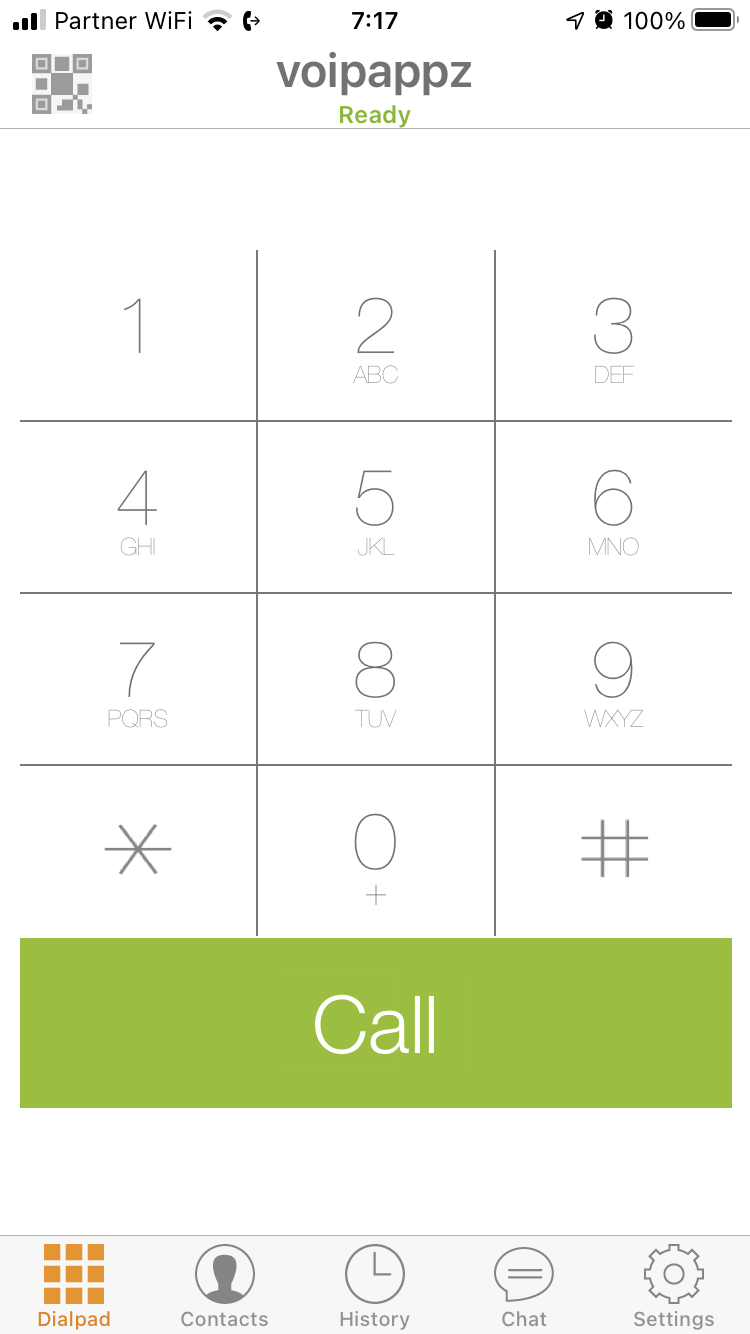
Install ZoiPer and launch the application. Make sure to enable the local Windows firewall so it will be able to communicate with voipappz softswitch.
Step 4:
With the credentials from STEP 2, please open the ZoiPer phone menu (down triangle to the right of "Contacts") and follow the following steps:
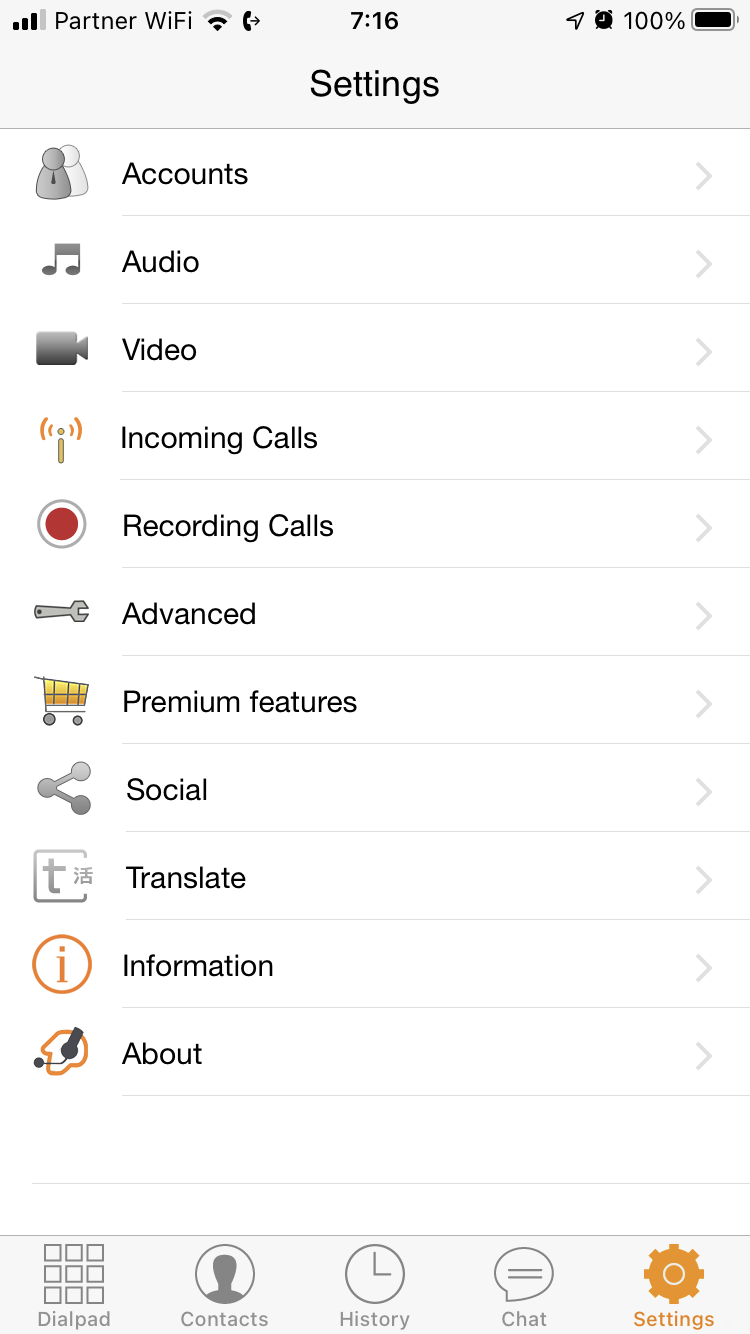
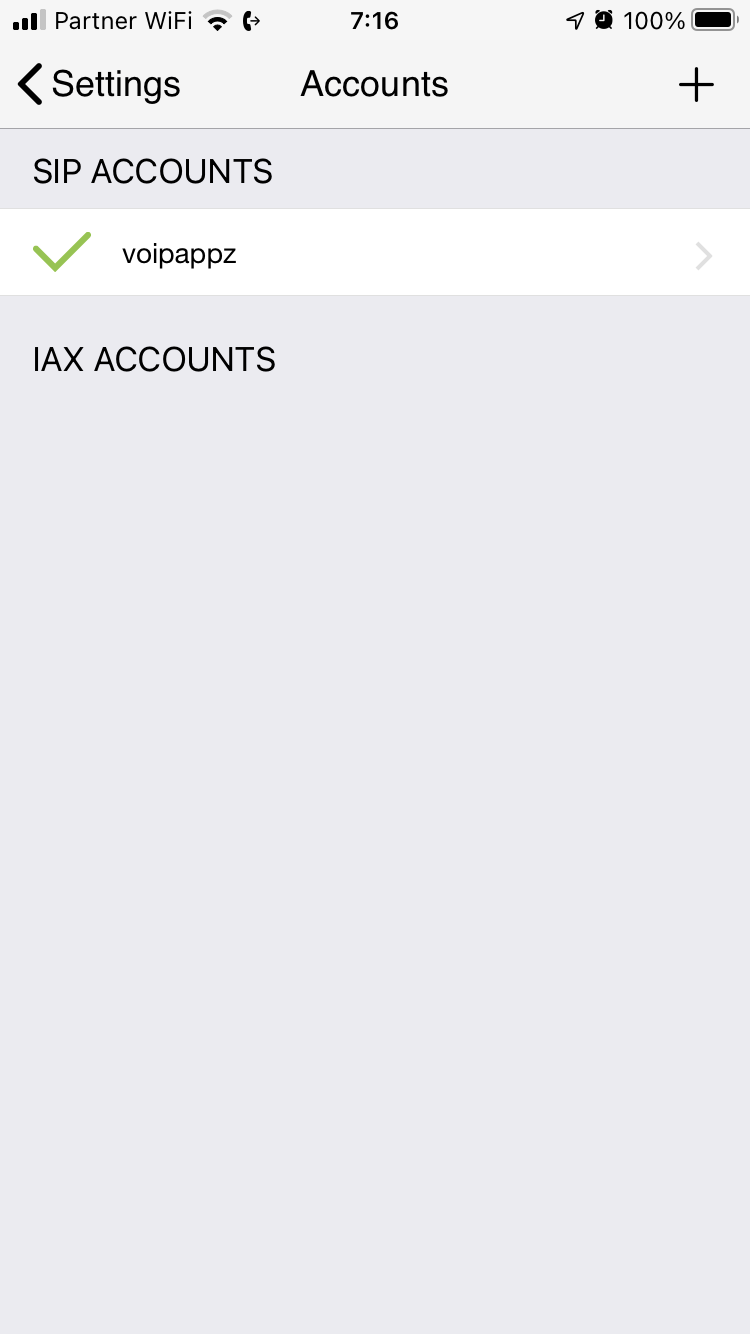
- Select the "Accounts"
- Select "+" and add SIP Account

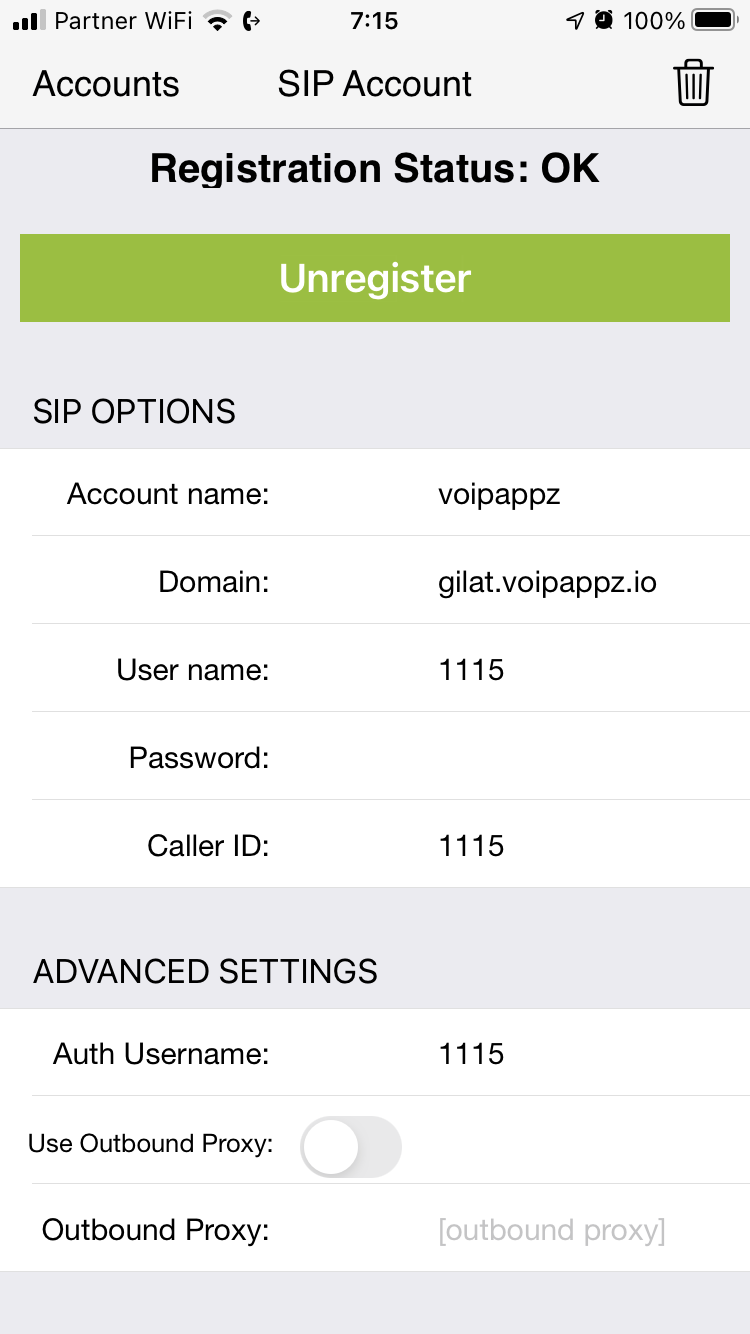
- Update the fields as shown below from the step 2 list
- Account Name - any value, can be Voipappz.
- Domain - VA Domain
- User Name - The extension number
- Password - VA Password
- Caller ID - any value, Can be the extension number.
- Auth Name - The extension number
All other parameters should be unchanged.
"Press "Register" and check that the phone is registered.
If not - check parameters or connectivity to Voipappz switch..
Tips and Connectivity troubleshooting:
- You can see if the Extension has been successfully Registered from the Extensions Screen . if the extension has been registerd you will see the "Registered" Button in Green
- for troubleshooting you can Press the "Logs" Action Button and see if the Extension has been reached to the server
Comments
0 comments
Please sign in to leave a comment.