
MicroSIP is a portable SIP softphone based on the PJSIP stack available for Microsoft Windows
All Major Versions versions was tested with Voipappz (VA).
In this guide we will show how to configure it to work with the Voipappz Platform.
Step 1: make sure you configured the extensions you need on the Admin Portal server. please Read First and Extensions - Screen guides.
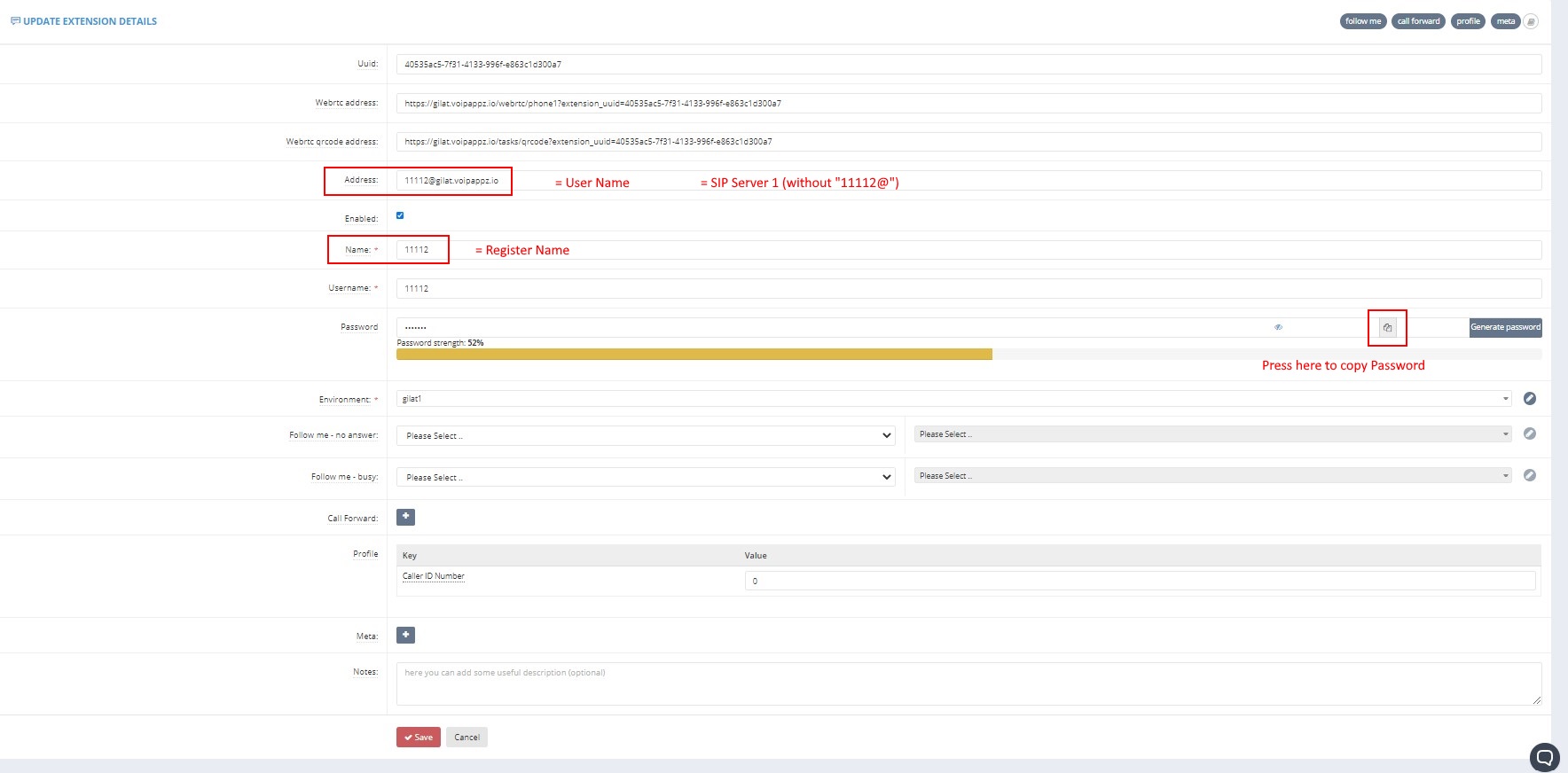
Step 2: Make a list of the extensions you need to setup. For each Setup you will need the following Details from the Admin Portal
- Username - for example: 1112
- Password - *press the reveal password to see it *
- Domain - for example: gilat.voipappz.io
Note are available in the Extensions - Screen of the admin page. See marked below.
Step 3:
Install microSIP and run the program. Make sure to enable the local Windows firewall so it will be able to communicate with voipappz softswitch.
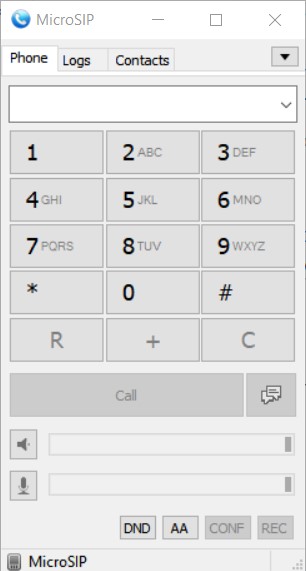
Step 4: With the credentials from STEP 2, please open the microSIP phone menu (down triangle to the right of "Contacts") and follow the following steps:
- Select the "Edit or Add Account" (see below)
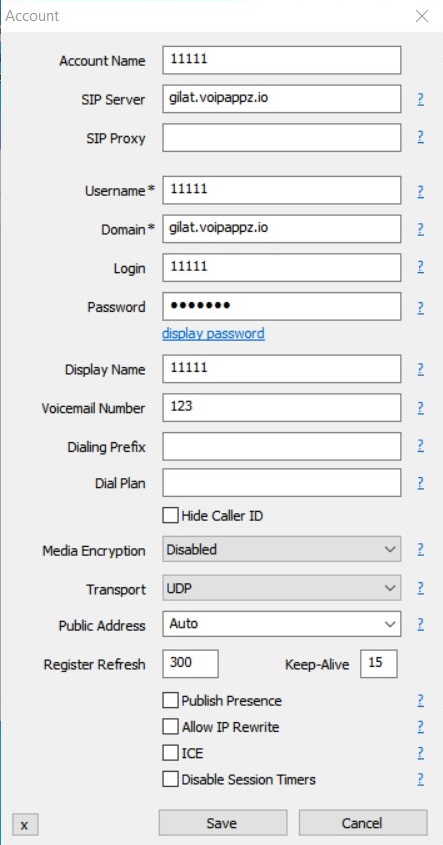
- Update the fields as shown below from the step 2 list
- Account Name - any value, can be extension number (1112 )
- Sip Server - Extensions' domain : gilat.voipappz.io
- Username - The extension number (1112 )
- Domain -Extensions' domain : gilat.voipappz.io
- Login - The extension number (1112 )
- Password - Password
- Display Name - any value, should be extension number or name of extension assigned user (Example "Office")
All other parameters should be as below.
"Press "Save" and check that the phone is registered (- "Online" (Green color) should be written on the phone's bottom line).
If the phone screen does not come up and the config menu remains following Save - check parameters or connectivity to Voipappz switch..
Tips and Connectivity troubleshooting:
- You can see if the Extension has been successfully Registered from the Extensions Screen . if the extension has been registered you will see the "Registered" Button in Green
- for troubleshooting you can Press the "Logs" Action Button and see if the Extension has been reached to the server
- The account screen is also displayed if the application cannot register on the server. It may be caused by a bad configuration or the server may be down or unreachable. Check both before contacting support.
Comments
0 comments
Please sign in to leave a comment.